Best GPU and PC for AI video creation in India (2026): how much VRAM, RAM and storage you really need
Which NVIDIA GPU, how much VRAM, system RAM and SSD space you need to make AI YouTube videos locally in India: desktop vs laptop, RTX 50-series VRAM tiers, and the exact setup our studio was built and benchmarked on (RTX 5070 Ti, 16 GB).
"Which GPU should I buy for AI videos?" is the question I get most after people see our channel's numbers: 2,26,352 views (2.26 lakh), 5,800+ watch hours and 1,790 subscribers (+1,464 in 28 days) (Oct 11–17, 2026). Every one of those videos came out of a studio I built and benchmarked on my own PC with an NVIDIA RTX 5070 Ti (16 GB).
This guide explains what actually matters when you pick a GPU and PC for local AI video creation in India: VRAM, system RAM, storage and cooling. I won't quote prices, because GPU prices in India change every few weeks, and every spec below links to NVIDIA's official pages.
Key takeaways
- VRAM is the number that matters most. It decides which models fit on the card.
- 16 GB of VRAM on an NVIDIA RTX card is our recommended target for a full local video pipeline.
- Laptop GPUs often have less VRAM than desktop cards with the same name. Check before you buy.
- No GPU yet? Start with cloud APIs. Video assembly with FFmpeg doesn't need a GPU.
First, what "AI video creation" means here
"AI video" covers very different workloads, and they need very different hardware. In our studio, a video is made in stages:
- Script: a language model such as Local 12B LLM through Ollama.
- Scene images: image models such as IndMinds 4K Scene Engine in 4-bit (NF4), FLUX.1 Schnell/Dev, Z-Image-Turbo or SDXL.
- Narration: open voice models such as IndMinds Neural Voice Engine, in 30 Indian and global languages.
- Assembly: FFmpeg joins images, voice, subtitles and motion into the final MP4, using NVIDIA's NVENC hardware encoder when available.
That's the workload this guide is sized for. Text-to-video models, which generate moving clips directly, are a different class of software. They're usually much heavier on VRAM, and requirements vary a lot from model to model, so always read the model card before you buy hardware for them.
Why VRAM matters more than raw speed
Your GPU's memory (VRAM) has to hold the model while it runs. If a model doesn't fit, it either fails, or spills into system RAM and becomes dramatically slower. A faster card with too little VRAM can be worse in practice than a slightly slower card with more.
Three choices are why a full pipeline fits on 16 GB in our studio:
- Quantization. The default image model runs in 4-bit (NF4), which shrinks its memory footprint with a small quality trade-off.
- One heavy model at a time. The image model and the voice model never sit in GPU memory together. Each loads, finishes its batch and is cleared.
- Cached stages. If something fails halfway, the pipeline resumes instead of regenerating everything.
VRAM tiers: a practical guide
| VRAM | What to expect for a local video pipeline |
|---|---|
| 8 GB | Language models through Ollama and smaller or heavily quantized image models. Workable for learning, with compromises and slower batches. |
| 12 GB | More breathing room for quantized image models. Still plan on one model at a time. |
| 16 GB | Our recommended target. The full pipeline (script, images, voice, assembly) runs comfortably with quantized models. |
| 24–32 GB | Headroom for larger models, higher resolutions and heavier experiments such as text-to-video. |
These are planning tiers from our own experience, not guarantees. The real limit is always the specific model and settings you choose.
NVIDIA RTX 50-series: VRAM at a glance
Most open image and voice tools target NVIDIA's CUDA first, so NVIDIA is the practical choice today. Here's the VRAM of the current desktop and laptop line-ups, taken from NVIDIA's official India pages:
| GPU | Desktop card VRAM | Laptop GPU VRAM |
|---|---|---|
| RTX 5090 | 32 GB | 24 GB |
| RTX 5080 | 16 GB | 16 GB |
| RTX 5070 Ti | 16 GB | 12 GB |
| RTX 5070 | 12 GB | 8 GB |
| RTX 5060 Ti | 16 GB or 8 GB | – |
| RTX 5060 | 8 GB | 8 GB |
| RTX 5050 | 8 GB | 8 GB |
Sources: GeForce RTX 50 Series desktop and GeForce RTX 50 Series laptops. Specs can be revised, so confirm on those pages before buying.
Two things stand out:
- The RTX 5060 Ti comes in 16 GB and 8 GB versions. For AI work, the box and the listing must say 16 GB.
- Same name, different memory. A "5070 Ti laptop" is not the same as a 5070 Ti desktop card. Always check the laptop's VRAM in the spec sheet, not just the GPU name.
What about NVENC?
NVENC is the dedicated video encoder on NVIDIA cards. It makes the final FFmpeg export much faster than CPU-only encoding. Per NVIDIA, the RTX 5090 has three 9th-gen encoders, the RTX 5080 and RTX 5070 Ti have two, and the other desktop cards have one. For publishing a few videos a week, one encoder is enough. Extra encoders matter more when you export many videos in parallel. NVIDIA's encode/decode support matrix has the full details.
The rest of the PC: RAM, storage, CPU and power
The GPU gets the attention, but a badly balanced PC will still slow you down. These are our practical suggestions, not official requirements.
System RAM
Models are loaded through system memory, and the studio, browser and editor all compete for it. 32 GB is a comfortable target for a local video pipeline. 16 GB can work for lighter setups if you close other apps while generating.
Storage
Model files are large, and you'll want several image, voice and language models installed side by side. Get a fast NVMe SSD with generous free space just for models and projects. Keep renders and finished videos on a separate drive if you can, so your model drive never fills up mid-batch.
CPU
For this kind of pipeline, the GPU does the heavy lifting. A recent mid-range desktop CPU is generally fine. You don't need a top-end workstation processor to start.
Power supply and cooling
AI generation can keep the GPU at full load for long stretches, much longer than a typical gaming session. Use a good-quality power supply rated for your card (NVIDIA and the card maker list recommended wattage), and a case with proper airflow. In India's summer heat, cooling isn't optional.
Drivers and software
Keep your NVIDIA driver up to date, and install a PyTorch build that matches your CUDA setup. Most "my GPU isn't detected" problems come from driver and CUDA mismatches, not bad hardware.
Desktop or laptop?
| Desktop | Laptop | |
|---|---|---|
| VRAM for the money | Usually higher | Often lower for the same GPU name |
| Long renders | Better cooling, steadier speed | Hotter, may slow down under sustained load |
| Upgrades | Swap the GPU, add RAM or SSDs later | Limited |
| Portability | None | Take it to class or to clients |
If AI video is your main goal and you work from one place, a desktop with a 16 GB card is the better buy. If you need portability, choose a laptop for its VRAM first and its brand second.
Don't buy anything yet if...
- You haven't published a single video. Start with cloud tools and free tiers, find out if you enjoy it, then decide on hardware.
- You only need scripts. Language models are the lightest part of the pipeline, and cloud models are excellent at it.
- You want text-to-video specifically. Check the exact model's requirements first. They may push you to a much larger card or to cloud GPUs.
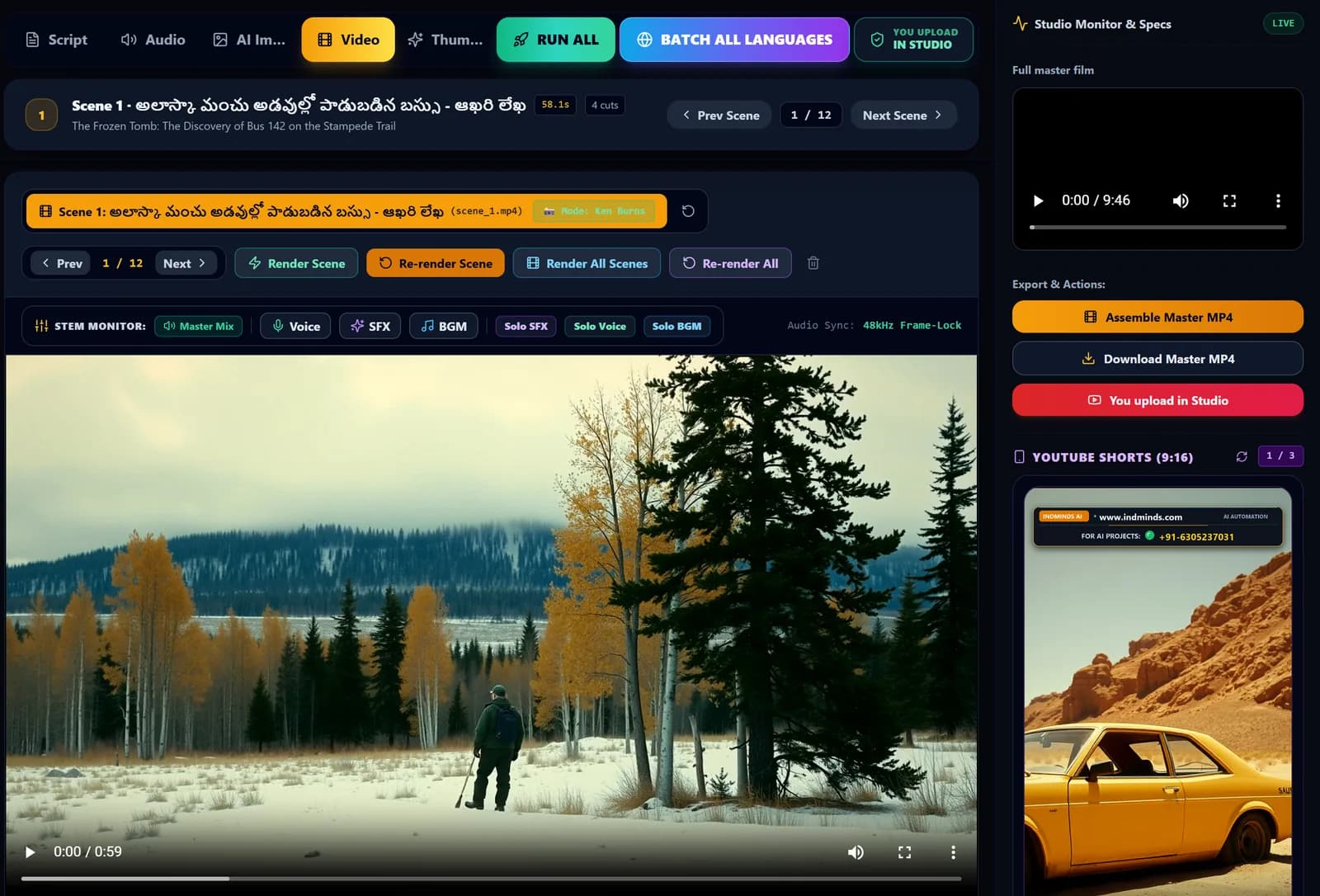
Our studio can run cloud-only with Gemini, OpenAI, Grok, Claude or OpenRouter, and final stitching still runs locally with FFmpeg, no GPU needed. That's a sensible way to begin. For the full cost and privacy comparison, read Free local AI on your own GPU vs paid APIs.
A sensible path for most creators in India
- Learn the workflow first with cloud tools, on whatever computer you have.
- Publish consistently for a few weeks and see which stages cost you the most time or money. For most people, it's images.
- Then buy for VRAM: a 16 GB NVIDIA RTX card if your budget allows, 12 GB if it doesn't. Avoid 8 GB if you're buying specifically for AI images.
- Go hybrid: keep a strong cloud model for scripts and run images and voice locally, where retries pile up.
A note on model licences
Hardware is only half the decision. Some popular open image and voice models are released for non-commercial use only. If you plan to monetize, or you build videos for clients, read each model card's licence before you build your workflow around it.
Where IndMinds fits
- Weekend AI Workshop (₹999): learn the complete workflow with no coding and no GPU, then decide whether hardware makes sense for you.
- AI Video Studio Setup: we set up the studio on your own NVIDIA PC (or in cloud-only mode), with commercially licensed models, and walk you through your first videos. See the studio in action.
Live classes are taught by 18+ years IT industry experts. We teach skills and workflows. We don't promise views, earnings or jobs.
To see how the whole stack fits together on one RTX 5070 Ti, read How I got 2.26 lakh views on Bible Tales: the full stack.
Sources (official pages, checked Oct 19, 2026)
Frequently asked questions
What is the best GPU for AI video generation at home?
For a local pipeline that generates images, voice and then assembles the video, an NVIDIA RTX card with 16 GB of VRAM is our recommended target. Our studio was developed and benchmarked on an RTX 5070 Ti with 16 GB. On NVIDIA's RTX 50-series desktop line-up, the RTX 5060 Ti (16 GB version), RTX 5070 Ti and RTX 5080 have 16 GB, and the RTX 5090 has 32 GB.
How much VRAM do I need for AI image and video work?
VRAM decides which models fit. 16 GB comfortably runs a full local video pipeline if you use quantized models and load one heavy model at a time. 8 to 12 GB can work with smaller or more heavily quantized models and more patience. Text-to-video models are usually heavier still, so always check the model card's stated requirements.
Can I use a laptop for AI video creation?
Yes, but check the VRAM carefully. NVIDIA's laptop GPUs often have less VRAM than the desktop cards with the same name: per NVIDIA's India pages, the RTX 5070 Ti laptop GPU has 12 GB while the desktop RTX 5070 Ti has 16 GB. Laptops also run hotter and slower under long renders.
Do I need an NVIDIA GPU, or will AMD or Apple work?
Most open image and voice tools target NVIDIA's CUDA first, so NVIDIA is the practical, lowest-friction choice today. Other platforms can run some models, but expect more setup and fewer ready-made guides.
How much RAM and SSD storage do I need?
Our practical suggestion is 32 GB of system RAM and a fast NVMe SSD with plenty of free space, because model files are large and you'll keep several. 16 GB of RAM can work for lighter setups. These are planning guidelines, not hard requirements, so check each model's documentation.
Can I make AI videos without buying a GPU?
Yes. You can use cloud APIs for scripts, images and voice, and final assembly with FFmpeg runs fine on an ordinary computer. Our Weekend AI Workshop needs no coding and no GPU. Buy hardware only when you know you'll publish regularly.
Written by Vijay Allam, IndMinds, who builds and runs the AI video pipeline behind our Bible Tales channel and teaches IndMinds programs. Policies and exam details change; we link the official pages so you can check the current version.
Related posts

Newsletter
One useful AI email a week. No spam.
New posts, real numbers from our channel, and the next workshop and batch dates. Unsubscribe with one reply.
Prefer WhatsApp?
Ask a question or get batch dates on WhatsApp. We reply within one working day.